Make a Self-Running Slideshow on PowerPoint in Clicks

Last Updated: 2026. 08. 05

Think PowerPoint is outdated? Think again.

PowerPoint is a secret weapon packed with hidden features that easily outshine the competition offline. From instant AI design layouts to cinematic Morph animations, it offers everything you need to create captivating presentation decks with zero stress.

If you've been settling for basic templates or battling spotty internet during slide creation, you're missing out on PowerPoint’s full potential. Ready to create stunning digital slideshows that command attention? Follow the simple step-by-step tutorial below to upgrade your slides and present like a pro!

Corporate Presentation Slideshow
Preview
Corporate Presentation Slideshow
Use This Template
Business Presentation Slideshow
Preview
Business Presentation Slideshow
Use This Template

Part 1. How to Create a Slideshow in PowerPoint

The steps below will guide you on how to make a slideshow on PowerPoint.
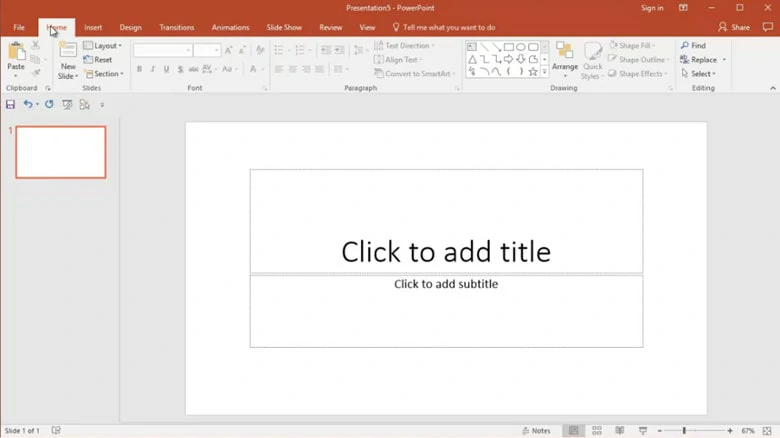
Step 1
Open PowerPoint if it is not already opened.
Open PowerPoint on Your Computer

Open PowerPoint on Your Computer

Step 2
Design your slides with relevant text and pictures of what you want to present. Remember to maintain a flow of information as your slides progress to make your presentations more seamless.
Design the Slide with Text and Picture

Design the Slide with Text and Picture

Step 3
Add transitions and animations to your content depending on how you want your slides to look. You may add one effect on all content or choose different animations and transitions for different parts of the content. Not all effects will be visible to you at top of the page and you will have to click on the drop-down button to explore more effects. Be sure to check all the effects and transitions out before making an informed decision.
Add Transitions to Your PowerPoint

Add Transitions to Your PowerPoint

Step 4
Make sure to adjust your start settings. If you do not select “On Click”, your animations will proceed as the slideshow proceeds, even as your press any key on the keyboard. If you want the animation to proceed as you like, select the “On Click” option.
Step 5
Remember, there is no such thing as one too many effects. You can always add more than one animation or transition to your content.
Step 6
Use the “preview” feature to view how your animations will look when played in a slideshow. Make any necessary edits to your presentation. Lastly, click F5 on your keyboard to start your slideshow.

Part 2. How to Add Music to PowerPoint Slideshow

Here’s what you need to do to add music to your slideshow.

Step 1
Once you have designed your presentation, go over to the insert tab.
Step 2
Next, select audio and then click on “Audio on My PC”. Remember, the audio of your choice must be downloaded on your PC beforehand.
Add Music from Your PC

Add Music from Your PC

Step 3
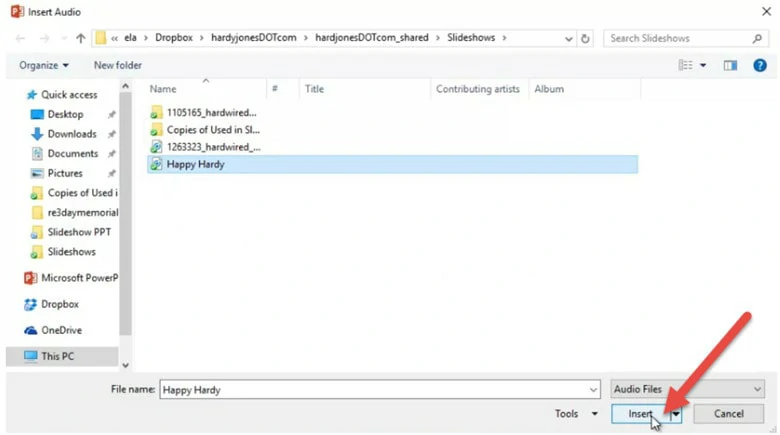
Browse through your computer to find the audio of your choice, select it and then click on insert.
Insert the Aduio

Insert the Aduio

Step 4
Once the audio is inserted, select it while it is on the slide.
Step 5
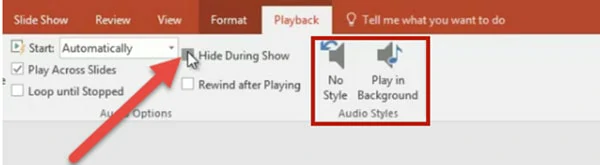
Go over to the Playback tab and click on “Play in Background”. This option will not only start the audio itself at the start of a slideshow but will also play the audio, throughout the slideshow.
Make the Audio Play in the Background

Make the Audio Play in the Background

Part 3. How to Make PowerPoint Slideshow Loop

Follow the steps below to create a looping slideshow.
Step 1
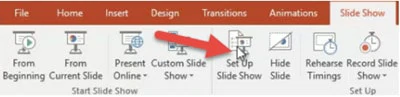
After you have completely designed your presentation, head over to the slideshow tab and select the option “Set Up Slide Show” which will lead to you a dialogue box.
Select the Option “Set Up Slide Show
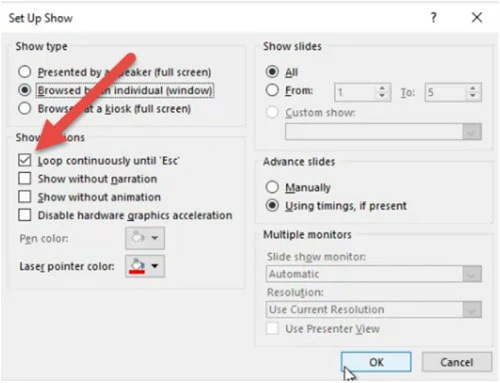
Select the Option “Set Up Slide Show

Step 2
Next, locate the “Show Options” and select the “Loop continuously until ‘Esc’” below it.
Make the Slideshow Loop

Make the Slideshow Loop

Step 3
To select all slides from starting all through the end, head on to the “Slides” preview panel.
Step 4
Click on the first slide.
Step 5
Hold on to the “Shift” key and click on the last slide.
Step 6
Then, go over to the “Transitions” tab, deselect “On Click” and choose the “After” option from the “Timings” tab.
Step 7
Using up and down arrows next to “After”, adjust the timings for which you want each slide to play. Once that is complete, start your slideshow. After your last slide, you will see your slideshow looping back to the first slide itself.

How to Turn a PowerPoint into a Slideshow

While Microsoft PowerPoint gives you full control over design, simple animations may not cut it, especially if you are sharing your deck on social media, embedding it on a website, or sending a pitch asynchronously.

If you want to turn your PowerPoint into a video slideshow with natural voiceover, background music, and smooth motion, FlexClip's AI PPT to Video Converter is there to help. It automatically analyzes the PowerPoint content, generates a script, then adds natural transitions between slides.

Create a Video
Step 1
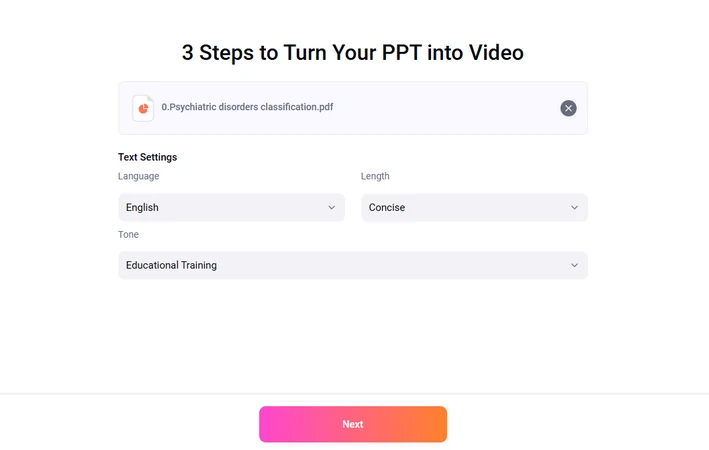
Access FlexClip's AI PowerPoint to Video tool, upload a PowerPoint document to FlexClip. Make some basic adjustments like language, length, tone, hit Next.
Upload PowerPoint to FlexClip

Upload PowerPoint to FlexClip

Step 2
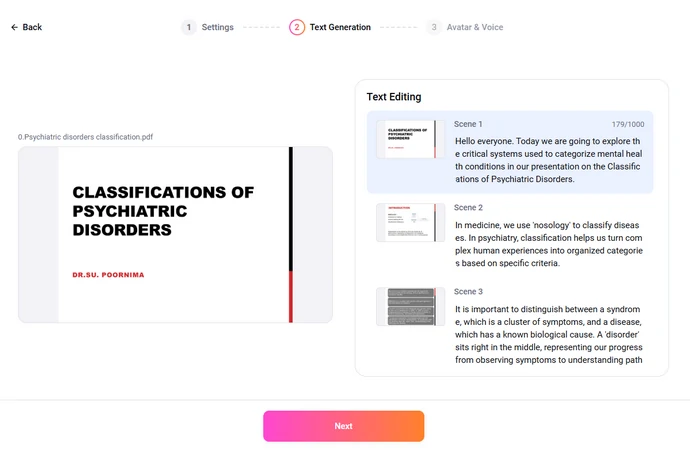
FlexClip automatically generates scripts based on the document. Check the script and make modification like a word document.
FlexClip AI Generating Script

FlexClip AI Generating Script

Step 3
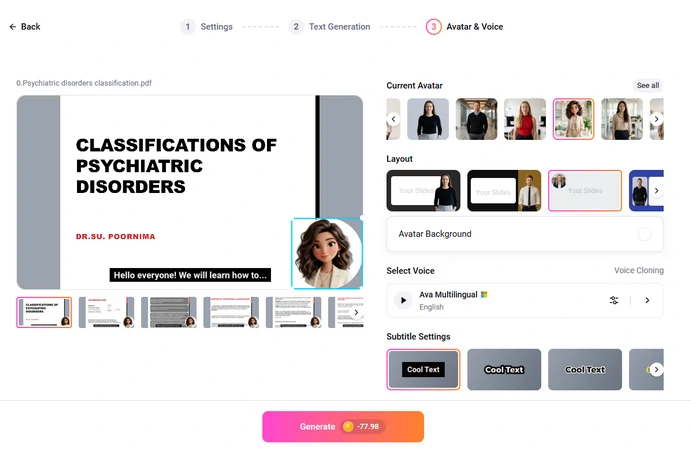
Choose an avatar, layout, background, select a voice, pick a subtitle style to present your PowerPoint information. Hit Generate. The PowerPoint slideshow should be ready within several minutes.
Pick an Avatar/Speech Voice

Pick an Avatar/Speech Voice

The Bottom Line

With growing competition, many platforms are emerging for presentation development. However, Microsoft PowerPoint, despite some of its features remaining unexplored, has maintained its name as one of the leading platforms for slideshow creation. If you have friends struggling with presentation making, kindly share this post with them so that they may learn about how slideshows can be created with PowerPoint and also become aware of the FlexClip platform which has an endless list of features for its consumers. Don’t forget to give it a try!

Group 11
Make a free video online
Create Your First Video With FlexClip Now
Get Started - Free